Skip to content
Geek Uninstaller application icon Geek Uninstaller
Download

Windows uninstaller · Portable · Free for personal use

Geek Uninstaller: fast removal, deep cleanup, zero bloat

Geek Uninstaller is a lightweight utility for Windows that lists installed programs, runs the official uninstaller when available, then scans for leftover files and registry entries. It is portable (single EXE in an archive), supports native x64 on 64-bit Windows, and can remove many Microsoft Store apps. This page explains how it works, how it compares to built-in Windows tools, and how to fix common problems, so you can uninstall safely and keep your PC tidy.

Release notes for the free edition commonly reference version 1.5.3.170 (November 2025).

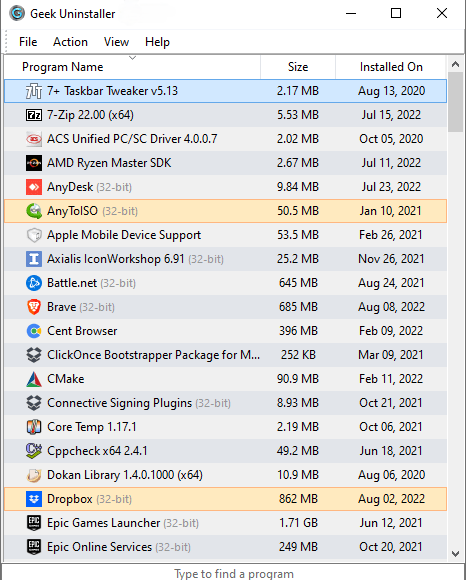
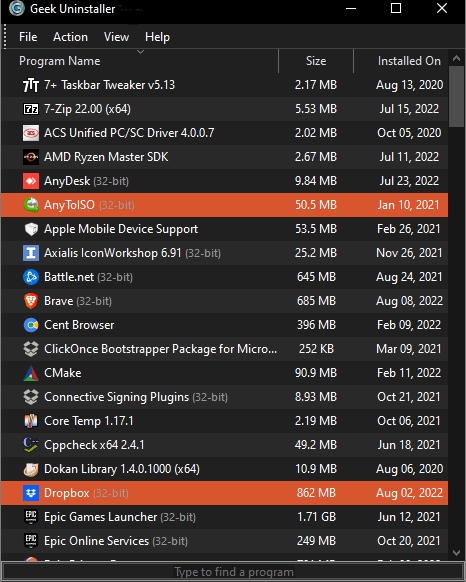
Geek Uninstaller main window showing the program list and search

Programs highlighted in purple/orange are recently installed or changed since the last run (official UI behavior).

Download Geek Uninstaller

The free portable build on this page is delivered only through our download host. Files are not stored on geek-uninstaller.pro. Use only the ZIP and 7Z buttons on this page: each click opens our dedicated host with a one-time path. Do not fetch the free build from any other site, mirror, or pasted link.

Read this first

  • ZIP and 7Z are the same program in different containers. ZIP opens in File Explorer; 7Z is smaller but needs 7-Zip or another tool that reads 7z archives.
  • Portable: extract the archive anywhere (folder or USB). There is no setup wizard.
  • Run GeekUninstaller.exe after extraction. On 64-bit Windows the tool uses the native x64 binary when available.
  • License: the free build is for personal use with no vendor support, per publisher terms.

ZIP package

Typical size about 3.04 MB

Archive file
geek.zip
What you get
Portable executable(s) and language data; extract, then run.
Choose ZIP if
you want to open the file with Windows without extra software.
Download geek.zip

The button always points at our download host with a unique path segment (assigned when the page loads and refreshed when you click).

7Z package

Typical size about 2.11 MB

Archive file
geek.7z
What you get
Same portable app as ZIP, compressed with 7-Zip.
Choose 7Z if
you already use 7-Zip (or another app that extracts .7z).
Download geek.7z

Same host and rules as ZIP: this button only, no other download source.

  1. 1Pick ZIP or 7Z and click the matching button.
  2. 2Allow the download when your browser asks where to save the file.
  3. 3Extract the full archive to a folder you control.
  4. 4Launch GeekUninstaller.exe. Run as administrator if Windows prompts you when removing system-wide software.

Paid “Pro” / Uninstall Tool

The publisher also sells a commercial product in the same family (sometimes referred to as Geek Uninstaller Pro or Uninstall Tool), with extras such as install tracing and batch removal. This guide does not provide download links for that edition, only the free ZIP/7Z above through the buttons on this page. If you need a business license, obtain the commercial product directly from the publisher (CrystalIDEA) on your own.

geek-uninstaller.pro

What Geek Uninstaller does well

These capabilities are highlighted on the official site and matter most in day-to-day PC maintenance.

Clean removal & leftover scan

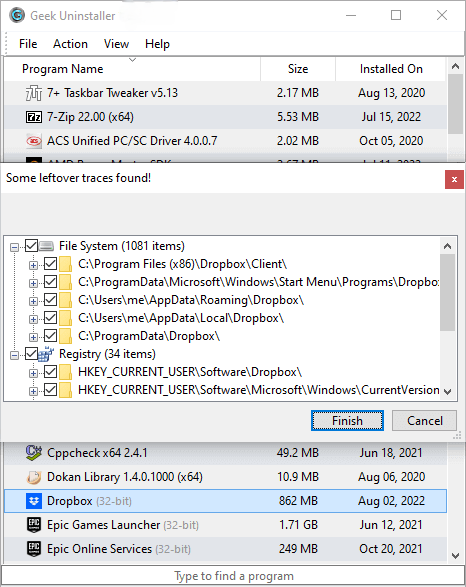
After the standard uninstaller finishes, Geek Uninstaller can scan for orphaned folders and registry keys. That helps when installers leave caches, logs, or configuration behind, common with games, IDEs, and creative suites.

Geek Uninstaller clean removal and leftover file scan

Force removal for broken entries

If an app no longer exists but still appears in the list, or the vendor uninstaller crashes, Force Removal can clear the entry. Use it carefully: only remove software you intentionally want gone.

Geek Uninstaller force removal option

Microsoft Store apps

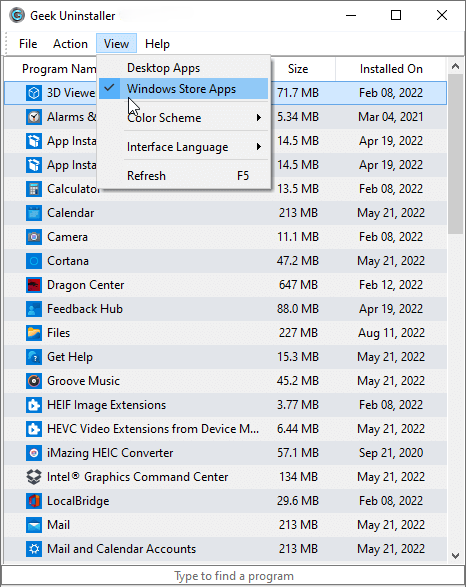
Switch between desktop and Store apps (official shortcut Ctrl+Tab or the View menu). Useful for uninstalling UWP apps that are awkward to find in Settings.

Uninstalling Microsoft Store apps with Geek Uninstaller

Instant search & dark mode

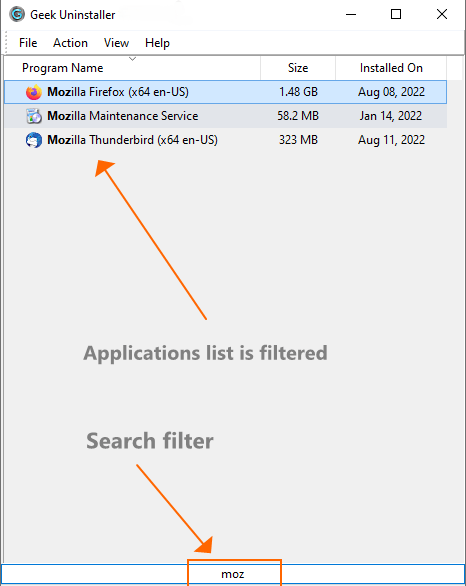
Type to filter the list, handy on systems with hundreds of entries. Dark mode is available on recent builds for Windows 10/11, which reduces eye strain during long cleanup sessions.

Geek Uninstaller dark mode and search
Geek Uninstaller is available in many interface languages

The interface is translated into 40+ languages, which makes it approachable for global users and IT teams supporting mixed-language environments.

Why leftover files and registry entries matter

Standard uninstallers often leave behind folders, config files, and registry keys. Understanding why this happens helps you decide when a deeper scan is worth it.

Disk space and clutter

Leftover caches from games, video editors, or development tools can consume gigabytes. Logs and temp files accumulate over time. A leftover scan can reclaim meaningful space on smaller drives.

Registry bloat and startup slowdown

Stale registry entries can slow down boot and app enumeration. Some entries point to missing executables or trigger "file not found" dialogs. Cleaning them can reduce system noise.

Reinstall conflicts

Reinstalling software over old leftovers can cause version conflicts, duplicate shortcuts, or broken file associations. A clean removal makes fresh installs more predictable.

Privacy and licensing traces

Some programs store license data or user preferences in AppData or registry. If you uninstall to deactivate a license or wipe traces, leftover keys can interfere.

Portable app confusion

Desktop installers sometimes create registry entries even when you run a portable version. Leftover associations can point Windows to the wrong executable or missing paths.

Security surface

Abandoned config files or leftover DLLs in shared folders can become attack vectors if not removed. Clean uninstalls reduce the number of orphaned components on disk.

Who uses Geek Uninstaller and when

Different user profiles benefit from portable uninstallers in different ways. Here are common scenarios.

Gamers

Game launchers, mods, and redistributables leave large caches in Documents, AppData, and ProgramData. Geek Uninstaller helps remove games fully and reclaim space before installing new titles. Force Removal is useful when a game was deleted manually but still appears in the list.

Developers and IT pros

SDKs, runtimes, and IDEs often leave registry keys and shared components. Clean uninstalls help avoid conflicts when switching versions (e.g., Node, Python, Visual Studio). A portable EXE is handy for USB toolkits when fixing client machines.

Office and home users

Trial software, one-off utilities, and bloatware from new PCs can pile up. Geek Uninstaller provides a clear list, leftover scanning, and Store app removal without installing a full "optimizer" suite.

Content creators

Video editors, DAWs, and creative suites store presets and caches in non-standard locations. Leftover scans can find them. Switching between Adobe, DaVinci, or other tools benefits from clean removals.

Security-conscious users

Removing VPN clients, remote access tools, or audit software completely reduces residue. Geek Uninstaller does not phone home or bundle extras, useful when minimizing trusted software surface.

How to use Geek Uninstaller (step by step)

Follow this workflow for safer uninstalls. Use the download section on this page and verify file integrity when possible to avoid repackaged bundles.

  1. 1

    Download and extract

    Grab the ZIP (~3 MB) or 7Z (~2 MB) archive, extract to a folder you control (Desktop or portable tools folder). Run the EXE; on 64-bit Windows the app runs as a native 64-bit process.

  2. 2

    Run as administrator when needed

    The official documentation states that administrator permissions are required. Right-click → Run as administrator if uninstalls fail or the list looks incomplete.

  3. 3

    Uninstall, then review leftovers

    Select the program → Uninstall. After the vendor uninstaller completes, allow Geek Uninstaller to scan. Uncheck any path or key you do not recognize; when in doubt, search the path online before deleting.

  4. 4

    Store apps and sorting

    Use Ctrl+Tab to toggle Store apps. Sort by install date or size to find large unused applications quickly.

Best practices before uninstalling

  • Close the application and any related background processes (check system tray).
  • Back up important data, some programs store user files in their install directory.
  • Deactivate licenses when applicable (e.g., Adobe, Office) before uninstalling.
  • Note custom settings you might want to preserve if reinstalling later.
  • Run as administrator when the list is incomplete or uninstall fails.
  • Review leftovers carefully, uncheck anything you do not recognize before deleting.

When NOT to use Geek Uninstaller

  • System components: Do not remove Windows Updates, drivers, or built-in features via Force Removal. Use Windows "Apps & features" or "Optional features" instead.
  • Apps you might reinstall: If you are troubleshooting and may roll back, consider keeping some leftovers until the issue is resolved.
  • Shared runtimes: Be cautious with .NET, Visual C++ Redistributables, and Java, other programs may depend on them.
  • Corporate-managed PCs: If your IT department uses deployment tools, follow their procedures instead.

Geek Uninstaller vs Windows Settings vs heavier suites

Choosing a tool depends on whether you need portability, leftover cleanup, and Store coverage, without subscribing to a large “PC optimizer.”

Capability Geek Uninstaller Windows Settings Typical “suite” uninstaller
Portable / no install Yes, single EXE in archive Built into OS Usually requires install
Leftover scan after uninstall Yes, focused scan No deep cleanup Varies; often bundled with extras
Microsoft Store (UWP) apps Yes Yes, via Apps settings Varies
Force remove broken entries Yes (advanced) Limited Sometimes
File size ~3 MB (ZIP) N/A Often 50 MB+
Startup programs / autorun No (see Pro) No Often bundled

Geek Uninstaller Pro is sold by the publisher CrystalIDEA as Uninstall Tool, same lineage with extras such as install tracing and batch removal for professionals who need deeper auditing. This guide only links the free build from the download section; use those buttons, not third-party hosts.

Geek Uninstaller vs Revo Uninstaller, IObit, CCleaner

Revo Uninstaller and IObit Uninstaller offer similar leftover scanning and often include install monitors, startup managers, and browser extensions. They tend to be larger and may bundle optional tools. CCleaner focuses on temp files and registry cleanup rather than full uninstalls. Geek Uninstaller stays minimal: a single portable EXE with no install monitor or autorun tools. Users who want a focused, small tool often prefer it; those who want an all-in-one suite may choose Revo or IObit.

Tips for specific program types

Some software categories leave more leftovers or require extra care when uninstalling.

Games (Steam, Epic, Origin)

Use the game client's built-in uninstall when possible. If entries are orphaned, Geek Uninstaller can remove them. Leftover save files are usually in Documents or AppData, back them up first if you plan to reinstall.

Adobe Creative Cloud

Use Adobe's Creative Cloud uninstaller for proper license cleanup. Geek Uninstaller can remove orphaned entries if the Adobe uninstaller failed or left remnants behind.

Microsoft Office

Office has its own uninstaller; use it first. Geek Uninstaller is useful for cleaning leftover registry keys after Office removal or when upgrading between versions.

Antivirus and security software

Always use the vendor's removal tool when switching antivirus. Geek Uninstaller can help with leftover entries, but incomplete removal of security software can cause conflicts.

Visual Studio and .NET

Use the Visual Studio Installer to modify or remove components. Avoid Force Removal of .NET runtimes, many applications depend on them.

Browser extensions and WebView

Uninstall browsers through Geek Uninstaller normally. Extensions are tied to the browser profile. WebView runtimes (Edge WebView2, etc.) are shared, do not remove unless you know no app needs them.

What editors and users say

The quotes below are published on the official Geek Uninstaller site (editorial reviews and selected user mail). They illustrate real-world perceptions of speed, simplicity, and thoroughness.

“The performance of Geek Uninstaller is impressive. It uninstalls quickly and finds leftover files that anyone couldn't. Overall, the app is an impressive maintenance tool that delivers on both performance and features. Highly recommended.”
Softonic review logo Lewis Leong, Softonic
“The bottom line is that Geek Uninstaller is a nice tool that can be quite useful. Inexperienced users shouldn’t have any troubles while working with this program, thanks to its intuitive layout and overall simplicity.”
Softpedia review logo Ana Marculescu, Softpedia
“Geek Uninstaller is perfect for anyone who wants to make sure they leave nothing behind on their system when they uninstall a program.”
CNET review logo CNET
“Geek Uninstaller is both portable and supports almost all the features anyone would expect from an uninstaller tool. Perfect for flash drives because it's a single file that takes up very little space.”
Lifewire review logo Lifewire

Lessons from community-style feedback (official “About” page)

  • List accuracy: Users who switched from other uninstallers sometimes mention missing entries elsewhere; Geek Uninstaller’s straightforward enumeration works better for them.
  • Balance: A recurring theme is avoiding tools that remove “too much” and break unrelated software, Geek Uninstaller’s prompts let you vet leftovers before deletion.
  • Portability: IT helpers and power users like a single EXE for troubleshooting PCs without leaving installers behind.

These excerpts reflect editor and user feedback circulated online.

Real user scenarios from forums and support

  • Switching from Revo to Geek Uninstaller after Revo stopped listing some programs, Geek showed the full list and removed them cleanly.
  • Cleaning a PC before selling: used Geek to remove personal software and leftovers, then ran Windows reset for a fresh start.
  • Game uninstaller crashed halfway, Force Removal cleared the orphaned entry so the game could be reinstalled without errors.
  • IT admin keeps Geek on a USB drive for on-site visits, no install required, works on any Windows PC with admin rights.
  • After uninstalling a VPN, leftover network config caused issues, leftover scan found and removed the remnants.
  • Developer uninstalling old Node/Python versions to avoid path conflicts, clean removal made version switches predictable.

Troubleshooting: fix common uninstall problems

These scenarios come up often in forums and support threads. They are educational tips, not a substitute for vendor support or backups.

“Access denied” during removal

Close the application completely (check the system tray). Run Geek Uninstaller as administrator. Temporarily pause aggressive real-time antivirus if it locks files, then re-enable it immediately after.

Ghost entry: app already deleted

Use Force Removal only after you confirm the program is actually gone from Program Files. If unsure, reinstall the same version, uninstall normally, then rescan leftovers.

Microsoft Store app won’t go away

Ensure you are in the Store apps view. Some system components cannot be removed; for optional features use Windows “Optional features” settings as well.

Shared DLLs and shared folders

Before deleting detected leftovers, read the path. If a folder is named after a publisher but shared with other apps (e.g., runtime libraries), keep it. When possible, prefer removing only keys clearly tied to the uninstalled product ID.

Uninstaller hangs or freezes

Some vendor uninstallers wait for user input or run silently for a long time. Check Task Manager for the uninstall process. If it is stuck, end the process and try Force Removal if the program files are already gone.

Program missing from list

Portable apps and some Store apps may not appear. Use View → Windows Store Apps for UWP. Manually installed portable software without registry entries will not show, delete its folder directly.

Antivirus flags Geek Uninstaller

Some heuristics flag tools that modify registry or delete files. Geek Uninstaller is clean; add an exception if your AV blocks it. Get the free build only with the ZIP/7Z buttons in the download section so you avoid repackaged or tampered files.

Common mistakes to avoid

  • Deleting all detected leftovers without reviewing, some paths are shared or needed by other software.
  • Force Removing entries for programs still installed, can leave orphaned files and broken shortcuts.
  • Removing .NET Framework, Visual C++ Redistributables, or DirectX, many games and apps depend on them.
  • Running without admin rights when uninstalling system-level software, can cause partial removals.
  • Downloading from unofficial sources, repackaged builds may contain malware or adware.

Frequently asked questions

Is Geek Uninstaller safe?
Download only via the links on this guide. Verify the file is not repackaged. Because the tool can delete registry keys and files, the main risk is user error. Always confirm leftovers.
Is it free for business use?
The official download page states the free build is for personal use with no support. Companies that need licensing and advanced features should evaluate the publisher’s commercial Uninstall Tool (Pro) on their own; this site only offers the free ZIP/7Z through the buttons in the download section, not from other sources.
Which Windows versions are supported?
Per official compatibility notes: 32- and 64-bit Windows 11, 10, 8.1, 8, and 7, with native x64 execution on 64-bit systems.
What changed in recent releases?
Example from release notes: version 1.5.3.170 mentions safer trace detection and improved icon detection.
Can Geek Uninstaller run from a USB drive?
Yes. Extract the archive to a USB folder and run the EXE from there. Settings are stored in the same folder. No installation is required.
Does it support silent or command-line uninstall?
The free build does not document command-line parameters for scripting. For batch automation, consider Uninstall Tool (Pro), which offers more automation options.
Why does leftover scan find AppData folders?
Many programs store config, caches, and user data in %AppData% or %LocalAppData%. Geek Uninstaller detects these during the scan. Review each path; some may contain data you want to keep.
Can I undo a Force Removal?
No. Force Removal deletes registry entries immediately. If you removed the wrong entry, you may need to reinstall the program to restore it. Always confirm before using Force Removal.
How do I report a bug or request a feature?
Thomas Koen is credited as the author of Geek Uninstaller. The free version has no formal support channel through this guide.
Is there a 32-bit version?
The download includes both 32- and 64-bit executables. On 64-bit Windows, the main EXE launches the 64-bit process automatically.
Does it work on Windows Server?
Geek Uninstaller targets desktop Windows (7 through 11). It may run on Server editions, but compatibility is not officially documented.
What is the /store_apps parameter?
Per release notes, you can launch with /store_apps to open directly in the Windows Store Apps view.

Glossary of terms

Definitions for common terms used when discussing uninstallers and leftover cleanup.

Leftovers
Files, folders, and registry keys left behind after a program's uninstaller runs. May include caches, config, or orphaned registry entries.
Force Removal
Geek Uninstaller feature that deletes an app's registry entry without running its uninstaller. Used when the uninstaller is missing or broken.
Portable
Software that runs from a folder without installation. No entries in "Add or remove programs"; can be moved or run from USB.
Registry
Windows database storing configuration. Uninstallers add keys under HKLM\...\Uninstall. Leftover keys can point to deleted files.
UWP / Store apps
Universal Windows Platform apps installed via Microsoft Store. Different install model than classic desktop software.
Ghost entry
Registry entry for software that no longer has files on disk. Appears in the list but cannot be uninstalled normally.
Redistributable
Shared runtime (e.g., Visual C++ Redistributable) used by multiple programs. Removing can break dependent applications.
Product ID / GUID
Unique identifier for an installed product in the registry. Used to link leftovers to the correct application.

Command line and automation

The free Geek Uninstaller has limited CLI support. Documented parameters from release notes:

  • /store_apps: Open with Windows Store Apps view active (Ctrl+Tab equivalent at startup).
  • For batch removal, scripting, or silent uninstalls, the free build is not designed for that. Uninstall Tool (Pro) offers automation features for IT and deployment workflows.

Security and privacy

What Geek Uninstaller does and does not do regarding your data and system.

  • No telemetry or phoning home: The free build does not send usage data to external servers.
  • No bundled adware: The publisher’s ZIP/7Z contains only the tool.
  • Local operation: All scans and deletions happen on your machine. No cloud component.
  • Admin rights required: Needed to read install lists and modify registry. Run only when necessary.
  • User responsibility: Deleting leftovers or Force Removing can affect system stability if done incorrectly. Always review before confirming.